Installing STGY
This article explains how to install the entire STGY system in both development and demo-operation environments. It covers operation with Docker as well as operation with native services. Replace the domain names and IP addresses shown here with your own.
Setting Up a Development Environment on macOS
STGY can be developed in any environment where Docker runs, but this section describes how to set up a development environment on macOS. Linux is discussed later together with the demo-environment setup. On a Mac, the working environment is assumed to be on a home network or similar network and is not intended to accept connections from the Internet. Development proceeds by running the various dependent services in Docker while running the STGY backend and frontend services being developed directly on localhost. For verification, all services, including the backend and frontend, can also be run in Docker.
First, install Homebrew. Compared with highly customizable alternatives such as MacPorts, Homebrew is easier to manage because it provides a conventional and highly reproducible installation procedure.
/bin/bash -c "$(curl -fsSL https://raw.githubusercontent.com/Homebrew/install/HEAD/install.sh)"
echo 'eval "$(/opt/homebrew/bin/brew shellenv)"' >> ~/.zprofile
eval "$(/opt/homebrew/bin/brew shellenv)"
Use Homebrew to install the other required packages: Colima as the Docker VM, the Docker client, the Compose plugin, Node.js, jq, Git, and the GitHub CLI.
brew install colima docker docker-compose node jq git gh
Start Colima. On the first launch, specify the amount of resources to use with command-line options.
colima start --cpu 4 --memory 8 --disk 100
Configure the Docker client to use Colima.
docker context use colima
Add entries like the following to ~/.docker/config.json so that Colima and the Compose plugin are available. If the file already contains settings for Colima or other tools, keep them.
{
  "auths": {},
  "currentContext": "colima",
  "cliPluginsExtraDirs": ["/opt/homebrew/lib/docker/cli-plugins"]
}
Verify that the Docker client works. The commands should print strings similar to "Docker Compose version 2.39.3" and "Hello from Docker!", respectively.
docker compose version
docker run --rm hello-world
Verify that Node.js works. The commands should print strings similar to "v24.4.0" and "11.4.2", respectively.
node -v
npm -v
Log in to GitHub. You will be asked for an access token, so create one on GitHub beforehand.
NO_COLOR=1 gh auth login
Create a directory for development work and clone the stgy repository. From this point onward, work in the stgy directory.
mkdir ~/dev
cd ~/dev
git clone git@github.com:estraier/stgy.git
cd stgy
Repository Structure
All STGY-related packages are stored in a single repository, in what is commonly called a monorepo structure. The main directories and files are shown below.
- package.json : Configuration file for managing packages with NPM
- package-lock.json : Configuration file that pins dependency package versions
- docker-compose.yml : Configuration file for managing dependent services with Docker
- docker-compose.vps.yml : File that overrides the above configuration for the VPS demo environment
- env.dev.txt : Environment-variable configuration for the development environment
- env.vps.txt : Environment-variable configuration for a VPS environment where all services run in Docker
- env.native.txt : Environment-variable configuration for a VPS environment where all services run natively
- env.hybrid.txt : Environment-variable configuration for a VPS environment where only STGY-specific services run in Docker
- caddy/ : Directory containing Caddy configuration and the custom image
- Dockerfile : Configuration for the Caddy image with the rate-limiting module built in
- Caddyfile : Caddy configuration for the development environment
- Caddyfile.vps : Caddy configuration for the VPS demo environment
- extra-sites/ : Directory for host-specific settings additionally loaded by Caddy
- packages/ : Directory containing custom dependency packages
- markdown/ : Markdown parsing and conversion to HTML
- track/ : Parsing track data, converting it to TrackJSON, and rendering it
- geocoder/ : Generating and searching geocoding data
- ttts/ : Directory containing the source code and configuration files for the full-text search service
- backend/ : Directory containing the source code and configuration files for the backend service
- frontend/ : Directory containing the source code and configuration files for the frontend service
- scripts/ : Directory containing administrative utility scripts
- tests/ : Directory containing test code and files
- postgres/ : Directory containing PostgreSQL configuration
- minio/ : Directory containing MinIO configuration
- postfix/ : Directory containing configuration for Postfix running in Docker
- seeder/ : Directory containing initial seed data
- users-core-<ID>.txt, users-test-<ID>.txt : Users
- posts-core-<ID>.txt, posts-test-<ID>.txt, posts-after-actions-<ID>.txt : Posts
- agreements-core-<ID>.json : Terms of use
- actions/ : Seed data for follow, block, like, and similar actions
Package management is handled with NPM, with its configuration in package.json. Docker is managed by running the script commands defined there. The repository uses workspaces, and the package.json files under packages/*, ttts, backend, and frontend are managed by the root workspace configuration. Each subpackage contains the following common files and directories.
- package.json : Configuration file for package management with NPM
- tsconfig.json : TypeScript build configuration
- tsconfig.eslint.json : Build configuration used by eslint
- eslint.config.mjs : Configuration for code analysis with eslint
- jest.config.js : Configuration for unit tests with jest
- src/ : Source code
Dependency packages are installed under the node_modules directory created directly below the project root, and their versions are pinned in package-lock.json. Use the following commands to manage dependencies.
- npm ci : Install dependencies at the pinned versions
- npm install : Install newer versions of dependencies according to package.json
- npm run clean : Remove dependency packages
ttts, backend, and frontend each have a Dockerfile describing their Docker service instance. The remaining dependent services are configured directly in docker-compose.yml. docker compose and the administration scripts read environment variables from .env, but .env is not included in the repository. Depending on the deployment configuration, copy one of env.dev.txt, env.vps.txt, env.native.txt, or env.hybrid.txt to .env and then edit it for the environment. Because .env contains passwords and other secrets, it must not be tracked by Git.
The scripts directory contains scripts required to administer the system. Many are invoked through npm. They read configuration from environment variables in .env, so create .env beforehand.
- reset-data.sh : Initialize the PostgreSQL database and load the initial data from seeder
- reset-minio-data.sh : Initialize MinIO data, leaving it empty
- reset-cache.sh : Initialize Redis cache data, leaving it empty
- reset-ttts-data.sh : Initialize TTTS indexes, leaving them empty
- reset-service-data.sh : Initialize data for the entire service (PostgreSQL, Redis, and TTTS) and load the initial data
- edit-users.py : Create or update users
- edit-posts.py : Create or update posts
- user-actions.py : Log in as individual users and perform likes, follows, and blocks
- make-volume-test.py : Create large volumes of users, posts, follows, likes, and notifications for verification. It also creates large numbers of posts by a specific user and large numbers of replies to a specific post so that composite indexes can be checked with execution plans
- run-local-ttts.sh : Start the full-text search service on localhost
- run-local-backend.sh : Start the backend service on localhost
- run-local-frontend.sh : Start the frontend service on localhost
- run-databaseUtil.sh : Utility for database administration
- run-storageUtil.sh : Utility for media-storage administration
- run-searchUtil.sh : Utility for full-text search service administration
- deploy-backend.sh : Deploy the backend in the demo environment
- deploy-frontend.sh : Deploy the frontend in the demo environment
- import-archive.py : Import exported user data
- upload-embedded-images.py : Batch-upload local images for use in posts
The postgres directory contains SQL files that define the database schema. The minio directory contains scripts that perform initial configuration of object-storage buckets.
Starting and Stopping Services in the Development Environment
In the Mac development environment, use the following commands to start and stop the Docker-host VM.
- colima start
- Start Colima
- colima stop
- Stop Colima
- colima restart
- Restart Colima
At the repository root, copy env-dev.txt, which contains the development-environment settings, to .env. This is easy to forget, so take care. Then edit the contents of .env. To enable AI features, set STGY_OPENAI_API_KEY; to simplify email verification, set STGY_TEST_SIGNUP_CODE.
cp env.dev.txt .env
Use the following commands to start and stop services in Docker.
- npm run docker:init
- Reset the entire host. Force-remove every container, image, and volume, including those belonging to other projects. All data is deleted.
- npm run docker:reset
- Delete Docker images and rebuild them.
- npm run docker:build
- Build Docker images.
- npm run docker:destroy
- Delete Docker images.
- npm run docker:create
- Create Docker containers. Create networks and volumes if necessary, and pull images as needed.
- npm run docker:remove
- Delete Docker containers.
- npm run docker:up
- Build Docker images, create containers, and start the containers in one operation.
- npm run docker:down
- Stop and delete Docker containers in one operation.
- npm run docker:start
- Start Docker containers.
- npm run docker:stop
- Stop Docker containers.
The Docker-related commands can be grouped by purpose as follows.
- The simplest way to start and stop all services.
- npm run docker:up
- npm run docker:stop
- Proceed step by step from a completely clean state to running services.
- npm run docker:build
- npm run docker:create
- npm run docker:start
- Proceed step by step from running services back to a completely clean state.
- npm run docker:stop
- npm run docker:remove
- npm run docker:destroy
- Force changes to build settings or TypeScript code to be reflected and restart the services.
- npm run docker:reset
- npm run docker:start
- Incrementally reflect changes to build settings or TypeScript code and restart the services.
- npm run docker:up
- Completely reset the Docker environment and all data. Use this as well when storage is running short.
- npm run docker:init
During development, it is convenient to run backend and frontend directly on localhost while running only the other dependent services in Docker. Use the following procedure.
- npm ci
- Install external dependencies in the local environment.
- npm run packages:build
- Build and prepare internal dependencies in the local environment.
- npm run docker:start-dev
- Start Docker containers for dependent services other than backend and frontend.
- The full-text search server is also started in Docker; run docker compose stop ttts if you want to stop it.
- Run npm run docker:stop to stop everything.
- ./scripts/run-local-backend.sh
- Start the backend service and the various workers on localhost.
- Add the --start option to run the built output.
- The OpenAI API key can be overridden with --openai-api-key.
- Add --multi-worker to start every worker as a separate process, or --no-worker to start no workers.
- Stop it with Ctrl-C. The workers stop together with the server.
- ./scripts/run-local-frontend.sh
- Start the frontend service on localhost.
- Add the --start option to run the built output.
- Stop it with Ctrl-C.
- npm run reset-data
- Initialize the database and object storage, then load the initial data.
- npm run reset-data-test
- Initialize the database and object storage, then load data for functional testing.
- npm run reset-data-volume-test
- Initialize the database and object storage, load a large volume of data for performance testing, and run PostgreSQL ANALYZE.
- npm run reset-cache
- Initialize the Redis cache.
- npm run reset-search
- Initialize the full-text search service indexes and load all users and all posts.
When TypeScript code in the backend or frontend is changed, the corresponding running service restarts automatically and picks up the changes. However, its tsc and lint checks are not strict enough to guarantee that the code will work when built into a Docker image. Therefore, use the following commands for quality control. They may also be run from inside frontend or backend.
- npm run test
- Run the unit tests defined in *.test.ts.
- You may also run npm run test from inside backend or frontend.
- npm run lint
- Perform static code checking with eslint.
- npm run build
- Build for production under the strict tsc rules.
- npm run fmt
- Format the code with prettier.
After all services have been started, open the following URLs in a browser to begin using STGY.
- https://localhost:8080/ : Site used by end users
- By default, the password for the "admin" user is "stgystgy".
- http://localhost:8080/site-test : Verify that caddy/extra-sites/test.caddy is loaded
- Success is indicated by the message "test.caddy is OK".
- https://s3-console.stgy.jp/ : MinIO console
- Uploaded image data can be inspected here.
- https://mail.localhost:8080/ : Destination for verification mail
- Verification messages for signup and email-address changes are delivered here.
Setting Up a Development Environment on Linux
This section describes how to configure an environment for running and developing STGY on Linux. As with the Mac setup, it first shows how to start the services with Docker. Naturally, the backend and frontend can also be run locally. The environment is assumed to be in a data center or similar location and to accept connections from the Internet. It assumes that a domain has been acquired and a VPS host is available. Here, the domain stgy.jp is used and the system is built on Ubuntu Linux running on a VPS. The assigned IP address is 153.127.47.206.
Beforehand, configure DNS records for the host with the domain registrar's DNS service. Register the primary domain, image-distribution subdomain, and other subdomains with the same IP address.
- Subdomain=(empty string), type=A, value=153.127.47.206
- Subdomain=s3, type=A, value=153.127.47.206
- Subdomain=s3-console, type=A, value=153.127.47.206
- Subdomain=www, type=A, value=153.127.47.206
- Subdomain=mail, type=A, value=153.127.47.206
- Subdomain=(empty string), type=TXT, value=v=spf1 ip4:153.127.47.206 -all
Confirm that the settings above have propagated. Success is indicated by output similar to "Name: stgy.jp Address: 153.127.47.206".
nslookup stgy.jp
Configure reverse DNS in the VPS provider's control panel. Since the priority is to prevent mail from being rejected, register it as mail.stgy.jp. After configuration, use the following command to confirm that the setting has propagated.
dig +trace -x 153.127.47.206
In the VPS provider's control panel, install the latest Ubuntu LTS release, log in from the console, and perform the initial setup. Log in as the initial user created during installation; because this user is not the superuser, perform administrative work with sudo. Once the initial post-install configuration is complete, create a prod user for routine work and use sudo from that account thereafter.
- Update the software list: sudo apt update
- Update software: sudo apt upgrade
- Install and enable locales:
- sudo apt install locales
- Open /etc/locale.gen and uncomment the required locales (en_US.UTF-8 UTF-8 and ja_JP.UTF-8 UTF-8)
- sudo locale-gen
- Set the hostname: sudo hostnamectl set-hostname setagaya
- Create a regular user: sudo adduser prod
- Grant sudo privileges: sudo gpasswd -a prod sudo
Configure sshd. Open /etc/ssh/sshd_config and comment out the AcceptEnv line so that environment variables are not accepted from clients.
Configure the firewall. Expose SSH port 22, HTTPS port 443, HTTP port 80, and mail-submission port 587 to the Internet. Communications from Docker containers to native services on the host are allowed in one rule as traffic arriving from br-stgy, the Docker bridge dedicated to STGY. This avoids having to add a new UFW allow rule every time a native service is added or its port changes. This permission does not apply to traffic entering through external interfaces other than br-stgy. br-stgy is defined in docker-compose.yml.
sudo ufw default deny incoming
sudo ufw default allow outgoing

sudo ufw allow ssh
sudo ufw allow https
sudo ufw allow http
sudo ufw allow 587/tcp
sudo ufw allow in on br-stgy

sudo ufw enable
sudo ufw status
Reboot the system.
sudo shutdown -r now
Log in as the prod user and configure the working environment.
- Configure SSH keys:
- Copy .ssh/id_rsa, .ssh/id_rsa.pub, and .ssh/authorized_keys from the existing environment.
- Set permissions: chmod 700 .ssh ; chmod 600 .ssh/*
- Minimum shell environment setup
- Copy .bash_profile and .bashrc from the existing environment
- Configure an editor of your choice. For Emacs without a GUI, for example:
- sudo apt install emacs-nox
- Copy .emacs from the existing environment
Install Docker-related tools. By default, apt does not use Docker's official repository, so additional repository configuration is required.
sudo install -m 0755 -d /etc/apt/keyrings
curl -fsSL https://download.docker.com/linux/ubuntu/gpg | sudo gpg --dearmor -o /etc/apt/keyrings/docker.gpg
echo "deb [arch=$(dpkg --print-architecture) signed-by=/etc/apt/keyrings/docker.gpg] https://download.docker.com/linux/ubuntu $(lsb_release -cs) stable" | sudo tee /etc/apt/sources.list.d/docker.list >/dev/null
sudo apt update
sudo apt install -y docker-ce docker-ce-cli containerd.io docker-buildx-plugin docker-compose-plugin
Enable the Docker service. Also add the prod user to the docker group so it can use Docker.
sudo systemctl enable --now docker
sudo usermod -aG docker prod
newgrp docker  # 現在のセッションにdockerを加える。ログインし直しても良い。
Verify that the Docker client works. The commands should print strings similar to "Docker version 29.6.2", "Docker Compose version 5.3.1", and "Hello from Docker!", respectively.
docker --version
docker compose version
docker run --rm hello-world
Install Node.js and jq. The version of Node.js available through Ubuntu's default repositories is old, so install the Node 24 series from the NodeSource repository. The NodeSource nodejs package includes npm, so there is no need to separately install Ubuntu's standard npm package.
curl -fsSL https://deb.nodesource.com/setup_24.x | sudo -E bash -
sudo apt install nodejs jq
Verify that Node.js works. The commands should print strings similar to "v22.23.1" and "10.9.8", respectively.
node -v
npm -v
Install Git and the GitHub CLI.
sudo apt install git gh
Log in to GitHub. You will be asked for an access token, so create one on GitHub beforehand. The SSH key and access token need to correspond to the same account.
NO_COLOR=1 gh auth login
Create a directory for development work and clone the stgy repository. From this point onward, work in the stgy directory.
git clone git@github.com:estraier/stgy.git
cd stgy
Choosing an Operating Environment
STGY's architecture can be built on AWS using RDS and S3, but using many managed services makes the running cost too high for a demo environment. Deployment is also cumbersome. Therefore, for demonstration purposes I decided that running the system on a single VPS is simpler and more practical. Sakura VPS's 4 GB plan can be operated for under 4,000 yen per month, and with up to 400 GB of storage it should remain sufficient even if the user count grows considerably. Above all, the fixed monthly price is reassuring. It would be discouraging if a hobby service earning no revenue at all were subjected to a traffic flood and produced a bill of hundreds of thousands of yen. While the system is still a demo, it is preferable for the service to go down under overload rather than for usage-based charges to grow without bound.
When all dependent services are operated on the VPS itself, they can be run either as native services or as Docker containers. Running them natively provides the best performance and, because there is only one host, makes manual configuration relatively straightforward, but it is difficult to automate and tedious to repeat. Running them in Docker makes the initial container configuration somewhat more complicated, but once completed it makes automated deployment easy. Docker may impose a tiny loss in CPU, memory, and I/O efficiency, but the overhead of Docker on Linux is small enough to be effectively negligible, so performance need not be a concern. Therefore, the first deployment will use Docker. Docker runs on the VPS with nearly the same configuration as the development environment, and the database, object storage, backend server, and frontend server all run there.
All-Docker Configuration
With an all-Docker configuration in mind, first organize the architecture and settings. Connections between containers are managed mainly through environment variables, so identify which environment variables each container uses to recognize the others and determine the correct values. The names differ between the outside (Internet-facing side) and the inside (Docker subnet), and the reverse proxy translates between them, which makes this somewhat confusing. Any ambiguity here will certainly cause confusion later, so it is worth organizing the relationships in advance.
- Reverse proxy (Caddy)
- Required for SSL because the Node.js services speak only HTTP.
- STGY's main settings are written in caddy/Caddyfile or caddy/Caddyfile.vps, while host-specific settings unrelated to STGY are additionally loaded from caddy/extra-sites/*.caddy.
- Proxies https://stgy.jp/backend to the backend server at http://backend:3100 on the Docker subnet.
- Proxies all other requests to https://stgy.jp to the frontend server at http://frontend:3000 on the Docker subnet.
- Proxies https://s3.stgy.jp to the S3 server at http://minio:9000 on the Docker subnet.
- Caddy automatically obtains certificates from Let's Encrypt itself.
- Let's Encrypt rate-limits issuance after five or more acquisitions in seven days, so be careful not to delete the certificate volume with down -v.
- Of the web services running in Docker, this is the only one directly visible from the Internet. The SMTP port of the Dockerized Postfix service is not exposed on the host.
- Required for SSL because the Node.js services speak only HTTP.
- Frontend (Node.js + Next.js)
- Listens on frontend:3000 on the Docker subnet and mainly serves JavaScript. Externally it is exposed as https://stgy.jp.
- PORT=3000
- Recognizes the frontend as https://stgy.jp and resolves relative UI paths to absolute paths against that origin.
- NEXT_PUBLIC_FRONTEND_CANONICAL_URL=https://stgy.jp
- Recognizes the backend as https://stgy.jp/backend and sends API requests beneath that path.
- NEXT_PUBLIC_BACKEND_API_BASE_URL=https://stgy.jp/backend
- Note that CSR fetch calls work with relative URLs, whereas SSR fetch calls require absolute URLs.
- Recognizes the S3 server as https://s3.stgy.jp and uses it for image delivery and as the base URL for presigned POSTs.
- NEXT_PUBLIC_STORAGE_S3_BUCKET_PREFIX=stgy
- NEXT_PUBLIC_STORAGE_S3_PUBLIC_URL_PREFIX=https://s3.stgy.jp/{bucket}/
- Listens on frontend:3000 on the Docker subnet and mainly serves JavaScript. Externally it is exposed as https://stgy.jp.
- Backend (Node.js + Express)
- Listens on backend:3100 on the Docker subnet and provides the service API endpoints. Externally it is exposed as https://stgy.jp/backend.
- STGY_BACKEND_PORT=3100
- STGY_BACKEND_API_PRIVATE_URL_LIST=http://backend:3100
- Recognizes the frontend as https://stgy.jp and trusts X-Forwarded-For from a proxy chain of at most one hop.
- STGY_FRONTEND_ORIGIN=https://stgy.jp
- Recognizes the S3 server endpoint as http://minio:9000 and communicates with it over the Docker subnet.
- STGY_STORAGE_S3_ENDPOINT=http://minio:9000
- However, clients are told that objects are located under https://s3.stgy.jp/{bucket_name}.
- STGY_STORAGE_S3_PUBLIC_URL_PREFIX=https://s3.stgy.jp/{bucket}/
- Recognizes the database server as postgres:5432 and communicates with it over the Docker subnet.
- STGY_DATABASE_HOST=postgres
- STGY_DATABASE_PORT=5432
- Recognizes the cache server as redis:6379 and communicates with it over the Docker subnet.
- STGY_REDIS_HOST=redis
- STGY_REDIS_PORT=6379
- Recognizes the full-text search server as http://ttts:3200 and communicates with it over the Docker subnet.
- STGY_SEARCH_API_BASE_URL=http://ttts:3200
- Listens on backend:3100 on the Docker subnet and provides the service API endpoints. Externally it is exposed as https://stgy.jp/backend.
- Mail worker (Node.js CLI; started inside the integrated worker in production)
- Recognizes the cache server as redis:6379 and communicates with it over the Docker subnet.
- STGY_REDIS_HOST=redis
- STGY_REDIS_PORT=6379
- Recognizes the SMTP server as postfix:25 and communicates with it over the Docker subnet.
- STGY_SMTP_HOST=postfix
- STGY_SMTP_PORT=25
- Recognizes the cache server as redis:6379 and communicates with it over the Docker subnet.
- Media worker (Node.js CLI; started inside the integrated worker in production)
- Recognizes the cache server as redis:6379 and communicates with it over the Docker subnet.
- STGY_REDIS_HOST=redis
- STGY_REDIS_PORT=6379
- Recognizes the S3 server endpoint as http://minio:9000 and communicates with it over the Docker subnet.
- STGY_STORAGE_S3_ENDPOINT=http://minio:9000
- Recognizes the cache server as redis:6379 and communicates with it over the Docker subnet.
- Notification worker (Node.js CLI; started inside the integrated worker in production)
- Recognizes the cache server as redis:6379 and communicates with it over the Docker subnet.
- STGY_REDIS_HOST=redis
- STGY_REDIS_PORT=6379
- Recognizes the database server as postgres:5432 and communicates with it over the Docker subnet.
- STGY_DATABASE_HOST=postgres
- STGY_DATABASE_PORT=5432
- Recognizes the cache server as redis:6379 and communicates with it over the Docker subnet.
- Search-index worker (Node.js CLI; started inside the integrated worker in production)
- Recognizes the database server as postgres:5432 and communicates with it over the Docker subnet.
- STGY_DATABASE_HOST=postgres
- STGY_DATABASE_PORT=5432
- Recognizes the full-text search server as http://ttts:3200 and communicates with it over the Docker subnet.
- STGY_SEARCH_API_BASE_URL=http://ttts:3200
- Recognizes the database server as postgres:5432 and communicates with it over the Docker subnet.
- AI-summary worker (Node.js CLI; started inside the integrated worker in production)
- Recognizes the backend as http://backend:3100 and communicates with it over the Docker subnet.
- STGY_BACKEND_API_BASE_URL=http://backend:3100
- Recognizes the cache server as redis:6379 and communicates with it over the Docker subnet.
- STGY_REDIS_HOST=redis
- STGY_REDIS_PORT=6379
- Recognizes the database server as postgres:5432 and communicates with it over the Docker subnet.
- STGY_DATABASE_HOST=postgres
- STGY_DATABASE_PORT=5432
- Recognizes the backend as http://backend:3100 and communicates with it over the Docker subnet.
- AI-user worker (Node.js CLI; started inside the integrated worker in production)
- Recognizes the backend as http://backend:3100 and communicates with it over the Docker subnet.
- STGY_BACKEND_API_BASE_URL=http://backend:3100
- Recognizes the cache server as redis:6379 and communicates with it over the Docker subnet.
- STGY_REDIS_HOST=redis
- STGY_REDIS_PORT=6379
- Recognizes the database server as postgres:5432 and communicates with it over the Docker subnet.
- STGY_DATABASE_HOST=postgres
- STGY_DATABASE_PORT=5432
- Recognizes the backend as http://backend:3100 and communicates with it over the Docker subnet.
- Database server (PostgreSQL)
- Listens on postgres:5432 on the Docker subnet and manages the database.
- STGY_DATABASE_PORT=5432
- Listens on postgres:5432 on the Docker subnet and manages the database.
- S3 server (MinIO)
- Listens on minio:9000 on the Docker subnet and manages object storage. Externally it is exposed as https://s3.stgy.jp.
- STGY_MINIO_PORT=9000
- Listens on minio:9001 on the Docker subnet and serves the console UI. Externally it is exposed as https://s3-console.stgy.jp.
- STGY_MINIO_CONSOLE_PORT=9001
- Listens on minio:9000 on the Docker subnet and manages object storage. Externally it is exposed as https://s3.stgy.jp.
- Cache server (Redis)
- Listens on redis:6379 on the Docker subnet and manages the cache.
- STGY_REDIS_PORT=6379
- Listens on redis:6379 on the Docker subnet and manages the cache.
- Mail server (Postfix)
- Listens on postfix:25 on the Docker subnet and receives mail from the mail worker.
- STGY_SMTP_PORT=25
- Does not expose an SMTP port on the host and accepts connections only from the Docker subnet.
- Uses no external relay server; it looks up the destination domain's MX record and delivers mail directly.
- Listens on postfix:25 on the Docker subnet and receives mail from the mail worker.
- Full-text search server (TTTS)
- Listens on ttts:3200 on the Docker subnet and manages the full-text search indexes.
- STGY_SEARCH_PORT=3200
- Listens on ttts:3200 on the Docker subnet and manages the full-text search indexes.
The following diagram shows which services know the connection settings for which other services. This does not mean that every arrow represents an actual connection; rather, it means that one service loads settings referring to another. For example, the backend server never connects to Caddy, but the backend needs a setting that identifies the frontend URL arriving through Caddy as trusted. The backend must also tell the frontend the S3 service URL, and that URL contains Caddy's address. Likewise, the frontend must know the addresses used to reach the backend and S3 server through Caddy.
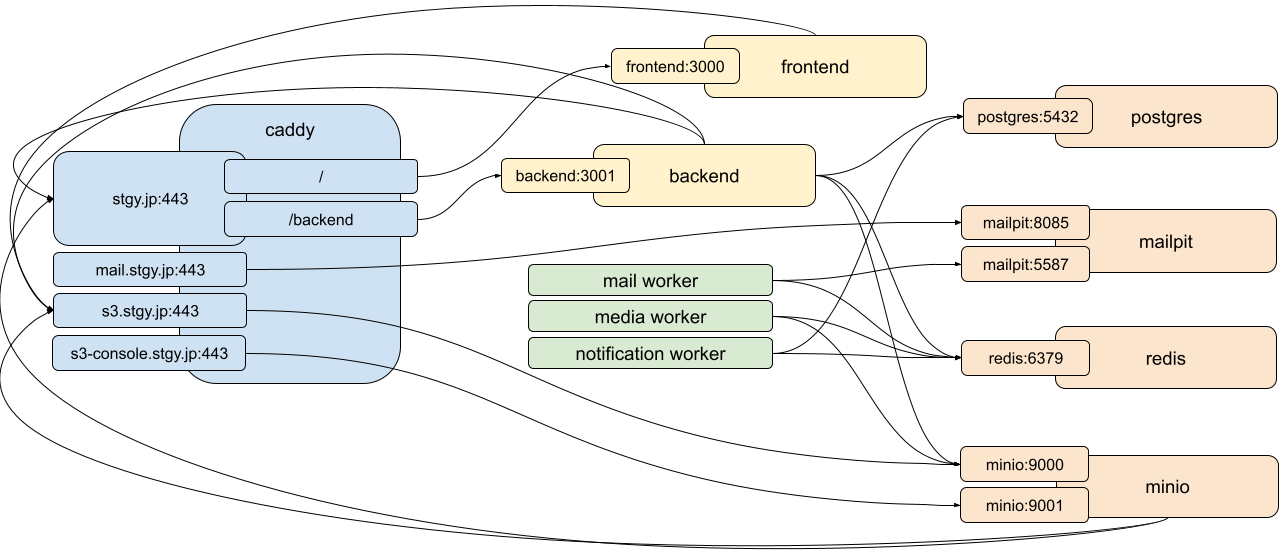
The configuration described above is already written in env.vps.txt, docker-compose.vps.yml, and caddy/Caddyfile.vps, so production operation with Docker can be started in about five minutes on any host where Docker and Git work. To use a different domain, replace the stgy.jp portions of those files with that domain name. To operate over HTTP instead of HTTPS, replace the https references in docker-compose.vps.yml and caddy/Caddyfile.vps with http. However, HTTP transfers passwords and session IDs in plaintext, so it should not be used except for verification purposes.
Starting and Stopping Services in the All-Docker Demo Environment
At the repository root, copy env.vps.txt, which contains the settings for the all-Docker demo environment, to .env. This is easy to forget, so take care. Then edit .env as necessary, changing values such as the domain name and passwords. The MinIO password—both STGY_MINIO_ROOT_PASSWORD and STGY_STORAGE_S3_SECRET_ACCESS_KEY—must be changed from its default value, otherwise the service can be manipulated from outside. To enable AI features, set STGY_OPENAI_API_KEY.
cp env.vps.txt .env
Start the Docker containers manually. Note that the npm script names are prefixed with "vps:".
npm run vps:docker:up
The Dockerized Caddy is automatically built as a custom image containing an IP-based rate-limiting module. By default, requests to the STGY site other than CGI are limited to 100 requests per IP address per 10 minutes; this can be changed with STGY_CADDY_RATE_LIMIT_EVENTS and STGY_CADDY_RATE_LIMIT_WINDOW in env.vps.txt. Separately, requests whose path ends in .cgi, or has PATH_INFO following .cgi, are limited to 100 requests per hour for each combination of hostname and source IP address. Rate-limit violations can be confirmed in the following log.
docker compose -f docker-compose.yml -f docker-compose.vps.yml logs caddy
Load the initial data. If the admin user on STGY has been changed, set STGY_ADMIN_EMAIL and STGY_ADMIN_PASSWORD to the new values before running the command.
npm run vps:reset-data
Then open the following URLs in a browser and the service is ready to use. The first thing to do is change the admin user's password.
- https://stgy.jp/ : Site used by end users
- By default, the password for the "admin" user is "stgystgy". Log in with it and change it.
- https://stgy.jp/site-test : Verify that caddy/extra-sites/test.caddy is loaded
- Success is indicated by the message "test.caddy is OK".
- https://s3-console.stgy.jp/ : MinIO console
- Do not change the administrator credentials here independently from the values in the environment configuration file.
The all-Docker VPS configuration does not run Mailpit. The mail worker sends directly to Postfix inside Docker. Postfix does not use an external relay server; it delivers to the destination domain's MX server. Postfix's SMTP port is not exposed on the host. Delivery status can be checked as follows.
docker compose -f docker-compose.yml -f docker-compose.vps.yml logs postfix
docker compose -f docker-compose.yml -f docker-compose.vps.yml exec postfix postqueue -p
Direct delivery is impossible if outbound TCP port 25 is blocked by the VPS provider or network. To be trusted by receiving servers, the forward DNS for mail.stgy.jp, reverse DNS for the sender IP address, and SPF for stgy.jp also need to be consistent.
Additional Caddy Site Configuration
The Dockerized Caddy can load additional Caddy configuration placed in the repository's caddy/extra-sites directory, separately from STGY's main configuration. docker-compose.yml mounts this directory at /etc/caddy/extra-sites inside the Caddy container. Therefore, from Caddyfile the import path remains extra-sites as before. The VPS configuration caddy/Caddyfile.vps loads every .caddy file directly under extra-sites. The development configuration caddy/Caddyfile loads only test.caddy, which is used to verify the mechanism, so that VPS-specific virtual hosts are not enabled in the local development environment.
# caddy/Caddyfile.vps
import extra-sites/*.caddy

# caddy/Caddyfile
import extra-sites/test.caddy
caddy/Caddyfile.vps also defines a cgi_rate_limit snippet that limits CGI access to 100 requests per hour for each combination of hostname and source IP address. When an additional site exposes CGI, load it inside that site block as follows.
import cgi_rate_limit
docker-compose.yml mounts the repository's caddy/extra-sites directory read-only at /etc/caddy/extra-sites in the Caddy container. Only additional Caddy configuration should be placed there. Static files and programs for additional sites are not mounted into the Caddy container; instead, they are served by web services running separately from STGY, with Caddy reverse-proxying to those services. Consequently, docker-compose.vps.yml does not need to be edited for every additional site. When Dockerized Caddy connects to a native service on the host, use host.docker.internal, which docker-compose.yml maps to the host gateway, as the destination.
caddy/extra-sites/test.caddy is tracked in Git to verify the import mechanism. The settings defined in test.caddy are loaded by STGY's main site configuration and return a fixed string at /site-test. Access http://localhost:8080/site-test in the development environment or https://stgy.jp/site-test on the VPS; if "test.caddy is OK" is displayed, the additional configuration has been loaded successfully.
When caddy/Caddyfile.vps or caddy/extra-sites/*.caddy is edited, the read-only mounted files themselves immediately become visible inside the Caddy container, but a running Caddy process does not automatically reload its configuration. Validate the configuration and then reload it with the following commands.
docker compose -f docker-compose.yml -f docker-compose.vps.yml exec caddy \
  caddy validate --config /etc/caddy/Caddyfile --adapter caddyfile
docker compose -f docker-compose.yml -f docker-compose.vps.yml exec caddy \
  caddy reload --config /etc/caddy/Caddyfile --adapter caddyfile
To operate virtual hosts other than STGY on the same VPS, place a .caddy file for each site directly under caddy/extra-sites. Files other than test.caddy and .gitignore are excluded from STGY's Git tracking by caddy/extra-sites/.gitignore, allowing host-specific configuration to be used without committing it to the STGY repository.
Operating Another Site
When operating a separate website on the same host as STGY, its data may be served through STGY's Caddy, but if more involved features such as CGI are required, it is better to run a separate lighttpd service. Here, lighttpd is run as a native service under the prod user, listens on port 8123, serves data under /home/prod/dbmx-public, and executes *.cgi files as CGI scripts.
Install lighttpd. dbmx.net uses CAPTCHA, so install the Lua module required for it at the same time.
sudo apt install -y lighttpd lighttpd-modules-lua
Stop the default service started by the package installation and disable automatic startup.
sudo systemctl disable --now lighttpd.service
Create the public directory.
mkdir /home/prod/dbmx-public
Create the lighttpd configuration file /etc/lighttpd/dbmx-site.conf. It must be owned by root:root.
Use the following contents.
server.modules = (
  "mod_indexfile",
  "mod_access",
  "mod_accesslog",
  "mod_setenv",
  "mod_cgi"
)

server.bind = "0.0.0.0"
server.port = 8123
server.document-root = "/home/prod/dbmx-public"

index-file.names = (
  "index.html", "index.xhtml"
)

include_shell "/usr/share/lighttpd/create-mime.conf.pl"

setenv.add-environment = (
  "PATH" => "/usr/local/sbin:/usr/local/bin:/usr/sbin:/usr/bin:/sbin:/bin"
)

static-file.exclude-extensions = (
  ".cgi"
)

cgi.assign = (
  ".cgi" => ""
)

cgi.execute-x-only = "enable"
server.bind is set to 0.0.0.0 so that not only the host's own loopback interface but also Dockerized Caddy can connect over ordinary TCP. Connections to port 8123 from external interfaces are blocked by UFW's default-deny policy, while only connections from br-stgy are allowed.
Validate the configuration. Run the validation as prod, the user that actually runs the service. If it exits without displaying an error, the configuration is valid.
/usr/sbin/lighttpd -tt -f /etc/lighttpd/dbmx-site.conf
Create /etc/systemd/system/dbmx-site.service. It must be owned by root:root.
[Unit]
Description=dbmx.net static and CGI site
After=network-online.target
Wants=network-online.target

[Service]
Type=simple
User=prod
Group=prod

ExecStartPre=/usr/sbin/lighttpd -tt -f /etc/lighttpd/dbmx-site.conf
ExecStart=/usr/sbin/lighttpd -D -f /etc/lighttpd/dbmx-site.conf

ExecReload=/usr/sbin/lighttpd -tt -f /etc/lighttpd/dbmx-site.conf
ExecReload=/bin/kill -USR1 $MAINPID

Restart=on-failure

[Install]
WantedBy=multi-user.target
Make systemd reload the unit definition.
sudo systemctl daemon-reload
Enable automatic startup at boot and start the service immediately.
sudo systemctl enable --now dbmx-site.service
Check its status.
systemctl --no-pager --full status dbmx-site.service
Verify connectivity.
echo "<h1>hello</h1>" > /home/prod/dbmx-public/index.html
curl -i http://127.0.0.1:8123/
Use the following commands to start, stop, restart, or reload the service configuration. After editing dbmx-site.conf, reload the configuration.
sudo systemctl start dbmx-site.service
sudo systemctl stop dbmx-site.service
sudo systemctl restart dbmx-site.service
sudo systemctl reload dbmx-site.service
To verify the new server while keeping both the old and new servers running before switching the DNS for dbmx.net, add the following inside the https://stgy.jp block in caddy/Caddyfile.vps before the argument-less handle directive. handle_path removes the /dbmx prefix before forwarding to lighttpd, so a request to https://stgy.jp/dbmx/index.html reaches /index.html on lighttpd.
  redir /dbmx /dbmx/
  handle_path /dbmx/* {
    reverse_proxy http://host.docker.internal:8123 {
      header_up Host {http.request.host}
    }
  }
After editing caddy/Caddyfile.vps, run caddy validate and caddy reload as described above, then verify with the following command.
curl -i https://stgy.jp/dbmx/
curl -i https://stgy.jp/dbmx/index.html
After changing the A record for dbmx.net in DNS to 153.127.47.206, requests to https://dbmx.net can be forwarded to lighttpd. Set caddy/extra-sites/dbmx.caddy to the following contents. If Caddy runs as a native service, use localhost:8123 as the destination. If this virtual host is enabled before DNS is switched, Caddy cannot obtain a certificate for dbmx.net because the name still points to the old server, so enable it after the switch.
https://dbmx.net {
  encode zstd gzip

  import cgi_rate_limit

  reverse_proxy http://host.docker.internal:8123
}
Automatically Starting Docker Containers
All services should start automatically when the OS boots. The startup script should run the npm run vps:docker:up command described above. To accomplish this, create a systemd service. Write the following contents to /etc/systemd/system/stgy-docker.service.
[Unit]
Description=STGY stack via Docker Compose
Wants=network-online.target
After=network-online.target docker.service
Requires=docker.service

[Service]
Type=oneshot
User=prod
WorkingDirectory=/home/prod/stgy
Environment=PATH=/usr/local/bin:/usr/bin:/bin
ExecStart=/usr/bin/npm run vps:docker:up
ExecStop=/usr/bin/npm run vps:docker:down
RemainAfterExit=yes
TimeoutStartSec=0
TimeoutStopSec=120

[Install]
WantedBy=multi-user.target
Enable the automatic-start service and check its status. The startup sequence (ExecStart) should run and start the Docker services.
sudo systemctl daemon-reload
sudo systemctl enable --now stgy-docker
systemctl status stgy-docker
To disable automatic startup, run the following command. The shutdown sequence (ExecStop) should run and stop the Docker services.
sudo systemctl disable --now stgy-docker
Native-Service Operation
For production operation as a large site, the typical approach is to use cloud-managed services for the reverse proxy, database server, storage server, and mail server. Even on premises, it is standard practice to run individual services on separate hosts to improve performance and availability. Encapsulating the SNS services with Docker is excellent, but operating the demo site entirely that way makes its configuration too different from a real production site to be ideal as operations training. Even when dependent services are kept on the same host, running them as separate native services makes the environment closer to production.
Running native services also has the advantage that each service can be reused for other purposes. For example, if stgy.jp hosts services other than the SNS, it is easier to operate them through a single reverse proxy. Likewise, if the database or object storage is shared with other services for some form of integration, native services are easier to manage. Ideally, such co-location and tight coupling should be avoided, and the SNS and other services should run on separate hosts, but resource constraints sometimes make that impractical.
In practice, because I do not want to spend much time or money operating demo environments, I want to collect demos of my various open-source products on a single host and operate them together through one reverse proxy. A demo environment effectively has no strict security or availability requirements, so the configuration can prioritize operational efficiency. It is possible to consolidate everything onto one host while still using containers, but when multiple containers serve the same role, management of ports and certificates becomes cumbersome. Therefore, services with the same role should be consolidated.
One might point out that containerized services can also be shared by multiple applications. However, when everything is assumed to run on a single VPS host, this mostly creates unnecessary work. You end up writing a service configuration file and then separately writing another configuration file that says to mount the first one into a container. There is also the question of which repository should manage the configuration of a container shared by applications A and B. Reusing single-purpose containers does have advantages, especially in a scale-out strategy with many instances, but in that situation one would probably use a container service such as ECS. That should be considered separately from a single-VPS configuration.
Ultimately, which services should run natively and which should run in containers is determined by operational convenience. In any case, it is useful to document here how to run every service natively. Follow the procedures below as needed.
For the all-native configuration, first copy env.native.txt to .env. Thereafter, whenever a username or password configured in PostgreSQL, MinIO, Redis, or another service is changed, set the corresponding value in .env to the same value. .env is excluded from Git tracking. Internal API calls from the integrated worker to the backend do not go through Caddy; STGY_BACKEND_API_BASE_URL=http://127.0.0.1:3100 connects directly to the backend on the same host.
cp env.native.txt .env
systemctl
On Ubuntu Linux, native services—that is, daemon processes—are managed by systemd. Its configuration is placed under /etc/systemd/system. Services are managed with the systemctl command.
- sudo systemctl start SERVICENAME : Start manually
- sudo systemctl stop SERVICENAME : Stop manually
- sudo systemctl restart SERVICENAME : Restart manually
- sudo systemctl enable --now SERVICENAME : Enable automatic startup
- sudo systemctl disable --now SERVICENAME : Disable automatic startup
- systemctl status SERVICENAME : Check startup configuration and service status
Use journalctl to inspect logs.
- journalctl -u SERVICENAME : View the entire log in a pager
- journalctl -u SERVICENAME -f : Show the latest log output and continue following it in the terminal
To make systemd recognize changes to configuration files such as *.service or *.socket, run the following command.
sudo systemctl daemon-reload
When switching an STGY deployment from Docker to native services, disable the stgy-docker service before proceeding. When switching from native services to Docker, disable all native services such as Caddy described below before proceeding.
Note that changing the operating method does not itself migrate PostgreSQL or MinIO data. Create backup data using the procedure described later, and restore it in the new environment.
Caddy
Caddy is a lightweight and fast web server written in Go. Its configuration is simple, and above all its automatic certificate acquisition is convenient. Install Caddy and enable automatic startup as follows.
sudo apt install caddy
sudo systemctl enable --now caddy
systemctl status caddy
The caddy package installed by apt cannot use the required plugin, so only the binary needs to be rebuilt and replaced. The latest Go toolchain must also be installed.
sudo apt remove golang-go
wget https://go.dev/dl/go1.25.1.linux-amd64.tar.gz
sudo rm -rf /usr/local/go && sudo tar -C /usr/local -xzf go1.25.1.linux-amd64.tar.gz
export PATH=$PATH:/usr/local/go/bin:$HOME/go/bin
go install github.com/caddyserver/xcaddy/cmd/xcaddy@latest
xcaddy build --with github.com/mholt/caddy-ratelimit@v0.1.0
sudo mv caddy /usr/bin/caddy
sudo chown root:root /usr/bin/caddy
sudo chmod 755 /usr/bin/caddy
The actual automatic-start service file for Caddy is /usr/lib/systemd/system/caddy.service. Edit this file so that Caddy runs as the prod user. The UMask line is an additional setting that allows processes in the same group to read data such as certificates.
User=prod
Group=prod
UMask=0027
Apply the changes to the startup script.
sudo systemctl daemon-reload
Create /var/caddy and use it to store Caddy-related data. Set its owner to match the user that runs Caddy.
sudo mkdir /var/caddy
sudo chown -R prod:prod /var/caddy
Caddy itself is configured in /etc/caddy/Caddyfile. A typical configuration looks like the following. Certificates are not obtained as wildcards; instead, a separate certificate is obtained for each hostname listed in Caddyfile. mail.stgy.jp is defined so that Caddy can obtain and renew the certificate used by Postfix, while web requests to it return 404. S3 is protected against hotlinking with a Referer restriction. In addition to serving the STGY service, Caddy is assumed to serve files below /home/www as a normal web server, with Basic authentication protecting the private/ subtree.
On stgy.jp, non-CGI requests are rate-limited to 120 requests per five minutes for each source IP address. /_next/static/, which contains Next.js static files, is excluded because normal page loads generate many requests there while imposing little application-processing load. Sites that expose CGI load the cgi_rate_limit snippet; requests whose path ends in .cgi, or has PATH_INFO after .cgi, are limited to 100 per hour for each combination of hostname and source IP address. Requests over the limit receive HTTP 429 and Retry-After, and the source IP address is recorded in the Caddy log.
{
  storage file_system {
    root /var/caddy
  }
}

(cgi_rate_limit) {
  rate_limit {
    zone cgi_per_ip {
      match {
        path_regexp cgi_rate_limit_path ^.*\.cgi(/.*)?$
      }
      key {http.request.host}:{remote_host}
      events 100
      window 1h
    }
    log_key
  }
}

https://stgy.jp {
  encode zstd gzip

  rate_limit {
    zone stgy_per_ip {
      match {
        not path /_next/static/*
        not path_regexp stgy_cgi_path ^.*\.cgi(/.*)?$
      }
      key {remote_host}
      events 100
      window 10m
    }
    log_key
  }

  redir /backend /backend/
  handle_path /backend/* {
    reverse_proxy http://127.0.0.1:3100 {
      lb_policy first
      health_uri /health
      header_up Host {http.request.host}
    }
  }

  handle {
    reverse_proxy http://127.0.0.1:3000 {
      lb_policy first
      health_uri /
      header_up Host {http.request.host}
    }
  }
}

https://s3.stgy.jp {
  encode zstd gzip

  @okref header_regexp Referer ^https?://([^.]+\.)?stgy\.jp(/|$)
  @noref not header Referer *
  handle @okref {
    reverse_proxy 127.0.0.1:9000 {
      flush_interval -1
    }
  }
  handle @noref {
    reverse_proxy 127.0.0.1:9000 {
      flush_interval -1
    }
  }
  respond 403
}

https://s3-console.stgy.jp {
  encode zstd gzip

  reverse_proxy http://127.0.0.1:9001
}

https://mail.stgy.jp {
  respond 404
}

https://www.stgy.jp {
  encode zstd gzip
  root * /home/prod/www

  import cgi_rate_limit

  @secret path /private*
  basic_auth @secret {
    admin $2a$14$uuicMQhEHEbzlvNfISPcue77In..Te9ZMzAKzppaRilla5wBlXdoa
  }

  file_server {
    index index.xhtml index.html
  }
}
Use the following commands to validate configuration files and apply configuration changes.
sudo caddy validate --config /etc/caddy/Caddyfile
sudo systemctl restart caddy
Generate a password hash for Basic authentication with the following command.
caddy hash-password --plaintext NEWPASSWORD
As an aside unrelated to STGY itself, if CGI scripts are needed, fcgiwrap, a FastCGI wrapper, is a good choice.
sudo apt install fcgiwrap
sudo systemctl enable --now fcgiwrap.socket
sudo systemctl status fcgiwrap.socket
The actual automatic-start scripts for fcgiwrap are /usr/lib/systemd/system/fcgiwrap.service and /usr/lib/systemd/system/fcgiwrap.socket. Edit both so that the service runs as prod and its socket is owned by prod.
User=prod
Group=prod
SocketUser=prod
SocketGroup=prod
Apply the startup-script changes.
sudo systemctl daemon-reload
Then add the following configuration inside the www.stgy.jp directive in Caddyfile to make files with the .cgi extension execute as CGI scripts. The configuration example above also loads cgi_rate_limit, so these requests are limited to 100 per hour. Directives are evaluated from top to bottom, so it is important to place this before the file_server directive.
  @cgi path_regexp cgi ^(.+\.cgi)(/.*)?$
  handle @cgi {
    reverse_proxy unix//run/fcgiwrap.socket {
      transport fastcgi {
        split .cgi
        env SCRIPT_FILENAME /home/prod/www{http.regexp.cgi.1}
        env DOCUMENT_ROOT /home/prod/www
        env SCRIPT_NAME {http.regexp.cgi.1}
        env PATH_INFO   {http.regexp.cgi.2}
      }
    }
  }
Restart Caddy after editing Caddyfile.
sudo systemctl restart caddy
Server certificates used for HTTPS are automatically obtained from Let's Encrypt for each hostname listed in Caddyfile and stored under /var/caddy/certificates. Renewal is automatic as well, and Caddy can satisfy the ACME challenge using its own web-server functionality, making this easier than operating certbot. The Postfix configuration described later reuses the certificate Caddy obtains for mail.stgy.jp.
$ cd /var/caddy/certificates/acme-v02.api.letsencrypt.org-directory
$ find . -name "*.crt" -o -name "*.key"
./s3-console.stgy.jp/s3-console.stgy.jp.crt
./s3-console.stgy.jp/s3-console.stgy.jp.key
./mail.stgy.jp/mail.stgy.jp.crt
./mail.stgy.jp/mail.stgy.jp.key
./stgy.jp/stgy.jp.key
./stgy.jp/stgy.jp.crt
./www.stgy.jp/www.stgy.jp.key
./www.stgy.jp/www.stgy.jp.crt
./s3.stgy.jp/s3.stgy.jp.key
./s3.stgy.jp/s3.stgy.jp.crt
Postfix
Postfix is a standard mail server. Running it instead of Mailpit enables actual mail delivery. Install Postfix and enable automatic startup as follows. In the installer dialog, choose "No configuration". Also install the modules and commands required for SASL authentication.
sudo apt install postfix
sudo systemctl enable --now postfix
systemctl status postfix
sudo apt install libsasl2-modules sasl2-bin
A user named postfix is created automatically. Add it to the prod group so it can read Caddy's certificates, and also add it to the sasl group so it can access the SASL authentication database.
sudo usermod -aG prod postfix
sudo usermod -aG sasl postfix
Edit (or create) /etc/postfix/main.cf. Mail emitted by the STGY mail worker running on localhost is accepted without authentication. When developing on a Mac, Mailpit's relay configuration receives it using TLS authentication.
myhostname = mail.stgy.jp
mydomain = stgy.jp
myorigin = $mydomain

mydestination = $myhostname, localhost.$mydomain, localhost
inet_interfaces = all
inet_protocols = ipv4

mynetworks = 127.0.0.0/8, [::1]/128, 172.23.0.0/24

mailbox_size_limit = 0
recipient_delimiter = +
append_dot_mydomain = no
biff = no

smtpd_recipient_restrictions =
  permit_mynetworks,
  permit_sasl_authenticated,
  reject_unauth_destination

smtpd_sasl_auth_enable = yes
smtpd_sasl_security_options = noanonymous
smtpd_sasl_local_domain = $mydomain
smtpd_sasl_path = smtpd
broken_sasl_auth_clients = yes

smtpd_tls_cert_file = /var/caddy/certificates/acme-v02.api.letsencrypt.org-directory/mail.stgy.jp/mail.stgy.jp.crt
smtpd_tls_key_file = /var/caddy/certificates/acme-v02.api.letsencrypt.org-directory/mail.stgy.jp/mail.stgy.jp.key
smtpd_use_tls = yes
smtpd_tls_security_level = may
smtp_tls_security_level = may
smtp_tls_session_cache_database = btree:${data_directory}/smtp_scache

maillog_file = /var/log/mail.log
message_size_limit = 10485760
alias_maps = hash:/etc/aliases
alias_database = hash:/etc/aliases
Edit /etc/postfix/master.cf. Comment out all existing lines and add the following. In particular, change chroot to n on the smtp line, and on the submission line allow clients from localhost and clients that have passed SASL authentication.
smtp       inet  n       -       n       -       -       smtpd
submission inet  n       -       n       -       -       smtpd
  -o syslog_name=postfix/submission
  -o smtpd_tls_security_level=encrypt
  -o smtpd_sasl_auth_enable=yes
  -o smtpd_recipient_restrictions=permit_mynetworks,permit_sasl_authenticated,reject_unauth_destination
Create an account for SASL authentication. Here, create the account postfix@stgy.jp. You will be prompted for a password; enter a string chosen beforehand. If the subsequent verification command prints "postfix@stgy.jp: userPassword", the setup is successful.
sudo saslpasswd2 postfix -u stgy.jp
sudo chgrp sasl /etc/sasldb2
sudo sasldblistusers2
Restart Postfix.
sudo systemctl restart postfix
On a Mac, use the swaks command to verify connectivity. Specify the password chosen above.
swaks --to hirarin@gmail.com --server stgy.jp:587 --from noreply@stgy.jp --auth-user postfix@stgy.jp --auth-password SASLPASSWORD --auth PLAIN --header "Subject: test" --body "test1" --tls
For an SMTP server to be trusted by a destination SMTP server, the hostname it identifies itself with—the value of myhostname in the configuration—and the reverse-DNS value of its IP address must match. The server's own IP address also needs to be registered in the DNS SPF record. SASL authentication is not essential for relaying mail, but when mail is to be accepted safely over the Internet with authentication, it is preferable to combine SSL with SASL authentication.
PostgreSQL
PostgreSQL is a database server known for robustness and a rich feature set. Several STGY features use PostgreSQL-specific functionality beyond standard SQL, so the implementation fundamentally assumes PostgreSQL. Install PostgreSQL and enable automatic startup as follows.
sudo apt install postgresql postgresql-contrib postgresql-client
sudo systemctl enable --now postgresql
systemctl status postgresql
Ubuntu 26.04's standard packages install PostgreSQL 18. Rather than hard-coding the configuration path to a particular major version, obtain the actual configuration directory from the running PostgreSQL instance. Run the following command and perform the subsequent configuration work in the same shell.
PG_CONF_DIR=$(dirname "$(sudo -u postgres psql -Atqc 'SHOW config_file')")
printf '%s\n' "$PG_CONF_DIR"
First, create $PG_CONF_DIR/conf.d/90-stgy.conf. Use the following contents. The memory settings are tuned for a system with 4 GB of RAM.
listen_addresses = '*'
port = 5432

password_encryption = scram-sha-256

logging_collector = on
log_min_duration_statement = 1000
log_line_prefix = '%m [%p] %u@%d '

shared_buffers = '1GB'
effective_cache_size = '3GB'
work_mem = '16MB'
maintenance_work_mem = '256MB'
checkpoint_completion_target = 0.9
wal_compression = on
max_connections = 100

shared_preload_libraries = 'pg_stat_statements'
Edit $PG_CONF_DIR/pg_hba.conf to configure host-based authentication. Accept connections only from localhost and the Docker bridge (172.23.0.*), and require password authentication for all of them. The original contents may be deleted entirely.
local  all  postgres                    peer
local  all  all                         scram-sha-256
host   all  all       127.0.0.1/32      scram-sha-256
host   all  all       ::1/128           scram-sha-256
host   all  all       172.23.0.0/24     scram-sha-256
Restart PostgreSQL after editing the configuration files.
sudo systemctl restart postgresql
Connect with psql and create the database for STGY.
sudo -u postgres psql <<__EOF__
CREATE ROLE admin LOGIN PASSWORD 'stgystgy';
CREATE DATABASE stgy OWNER admin TEMPLATE template0 ENCODING 'UTF8' LC_COLLATE 'C' LC_CTYPE 'C';
GRANT ALL PRIVILEGES ON DATABASE stgy TO admin;
__EOF__
Define the database schema and load the initial data.
ls postgres/init/*.sql | sort | while read file ; do
  PGPASSWORD=stgystgy psql -h 127.0.0.1 -p 5432 -U admin -d stgy < $file
done
Inspect the database contents.
PGPASSWORD=stgystgy psql -h 127.0.0.1 -p 5432 -U admin -d stgy

-- ロールの一覧
stgy=> \du
-- データベースの一覧
stgy=> \l
-- テーブルの一覧
stgy=> \dt
-- adminユーザの存在確認
stgy=> SELECT id, nickname, is_admin FROM users;
MinIO
MinIO is an S3-compatible object-storage service used by STGY to manage media data. Because MinIO has no apt package, install the binary directly as follows.
wget -O /tmp/minio https://dl.min.io/server/minio/release/linux-amd64/minio
sudo install -m 0755 /tmp/minio /usr/local/bin/minio
wget -O /tmp/mc https://dl.min.io/client/mc/release/linux-amd64/mc
sudo install -m 0755 /tmp/mc /usr/local/bin/mc
Create the user that runs MinIO, and create locations for its configuration and data.
sudo useradd --system --home /var/minio --shell /usr/sbin/nologin minio
sudo mkdir -p /var/minio/data
sudo mkdir -p /etc/minio
sudo chown -R minio:minio /var/minio
sudo chown -R minio:minio /etc/minio
Create /etc/minio/minio.env and write the configuration there. Because MinIO is accessible from outside, be sure to change the username and password.
MINIO_ROOT_USER=admin
MINIO_ROOT_PASSWORD=stgystgy
MINIO_API_CORS_ALLOW_ORIGIN=https://stgy.jp,https://s3.stgy.jp,https://s3-console.stgy.jp
MINIO_BROWSER_REDIRECT_URL=https://s3-console.stgy.jp
MINIO_SERVER_URL=https://s3.stgy.jp
Set ownership and permissions so that other users cannot read the configuration file.
sudo chown minio:minio /etc/minio/minio.env
sudo chmod 600 /etc/minio/minio.env
Create a systemd service for automatic startup at /etc/systemd/system/minio.service.
[Unit]
Description=MinIO Object Storage
Wants=network-online.target
After=network-online.target

[Service]
User=minio
Group=minio
EnvironmentFile=-/etc/minio/minio.env
ExecStart=/usr/local/bin/minio server /var/minio/data \
  --address 0.0.0.0:9000 \
  --console-address 127.0.0.1:9001
Restart=always
RestartSec=5
LimitNOFILE=65536
StandardOutput=journal
StandardError=journal

[Install]
WantedBy=multi-user.target
Enable automatic startup.
sudo systemctl daemon-reload
sudo systemctl enable --now minio
sudo systemctl status minio
Create the bucket used by STGY. Use the MinIO username and password configured in .env.
set -a
source .env
set +a
mc alias set stgylocal http://127.0.0.1:9000 "$STGY_MINIO_ROOT_USER" "$STGY_MINIO_ROOT_PASSWORD"
mc mb stgylocal/stgy-test
mc anonymous set download stgylocal/stgy-test
mc mb stgylocal/stgy-images
mc anonymous set download stgylocal/stgy-images
mc mb stgylocal/stgy-profiles
mc anonymous set download stgylocal/stgy-profiles
mc mb stgylocal/stgy-tracks
mc anonymous set download stgylocal/stgy-tracks
Redis
Redis is an in-memory key-value store used by STGY mainly for caching. Install Redis and enable automatic startup as follows.
sudo apt install redis-server
sudo systemctl enable --now redis-server
systemctl status redis-server
Edit /etc/redis/redis.conf. Use the following contents. Redis binds to all addresses but requires password authentication. Memory usage is limited to 512 MB. The original contents may be deleted entirely.
bind 0.0.0.0
port 6379
protected-mode yes

supervised systemd
pidfile /run/redis/redis-server.pid
logfile ""
dir /var/lib/redis

requirepass stgystgy

save ""
appendonly no

maxmemory 512mb
maxmemory-policy allkeys-lru
timeout 0
tcp-keepalive 60
Restart Redis after editing the configuration file.
sudo systemctl restart redis-server
Verify the connection with the CLI.
redis-cli -a stgystgy PING
Full-Text Search Service
STGY's full-text search uses a custom service based on the in-house 3TS (TTTS: time-tiered text search) architecture. It is built from the Git repository, deployed under /home/prod/stgy-ttts, and a startup script runs the deployed JavaScript code with Node.js through systemd.
To deploy the full-text search server, run the following command as the prod user from inside the stgy repository. The script contains the environment configuration for running every service natively on stgy.jp.
./scripts/deploy-ttts.sh
Running the deployment script deploys JavaScript under /home/prod/stgy-backend. A start.sh script is included there; executing it starts the backend service. A process named oneWorker, which integrates the various asynchronous workers, is also started at the same time. Create /etc/systemd/system/stgy-backend.service to start them automatically.
[Unit]
Description=STGY TTTS
Wants=network-online.target
After=network-online.target

[Service]
Type=simple
User=prod
Group=prod
WorkingDirectory=/home/prod/stgy-ttts
Environment=PATH=/usr/local/bin:/usr/bin:/bin
ExecStart=/home/prod/stgy-ttts/start.sh start
ExecStop=/home/prod/stgy-ttts/start.sh stop
ExecReload=/home/prod/stgy-ttts/start.sh restart
Restart=on-failure
RestartSec=2s
TimeoutStopSec=30s
KillMode=process

[Install]
WantedBy=multi-user.target
Enable the automatic-start service and check its status.
sudo systemctl daemon-reload
sudo systemctl enable --now stgy-ttts
systemctl status stgy-ttts
Verify network connectivity. Success is indicated by a 200 OK response.
curl -i http://localhost:3200/health
STGY Backend and Frontend
STGY's backend and frontend can also run as native services. They are built from the Git repository, deployed under /home/prod/stgy-backend and /home/prod/stgy-frontend, and startup scripts run the deployed JavaScript code with Node.js through systemd.
Before deploying the backend server, verify that the usernames and passwords in .env match the values actually configured in PostgreSQL, MinIO, Redis, and the other services. In particular, MinIO's username and password must be changed from their defaults, and the corresponding values of STGY_MINIO_ROOT_USER, STGY_MINIO_ROOT_PASSWORD, STGY_STORAGE_S3_ACCESS_KEY_ID, and STGY_STORAGE_S3_SECRET_ACCESS_KEY must match.
Run the following commands as the prod user from inside the stgy repository. The values in .env are read as deployment-time environment variables and embedded into the start.sh generated by deploy-backend.sh.
set -a
source .env
set +a
./scripts/deploy-backend.sh
For deployment-time environment variables that are not specified, deploy-backend.sh uses its built-in defaults for the all-native configuration.
Running the deployment script deploys JavaScript under /home/prod/stgy-backend. A start.sh script is included there; executing it starts the backend service. A process named oneWorker, which integrates the various asynchronous workers, is also started at the same time. Create /etc/systemd/system/stgy-backend.service to start them automatically.
[Unit]
Description=STGY Backend (API + workers)
Wants=network-online.target
After=network-online.target

[Service]
Type=simple
User=prod
Group=prod
WorkingDirectory=/home/prod/stgy-backend
Environment=PATH=/usr/local/bin:/usr/bin:/bin
ExecStart=/home/prod/stgy-backend/start.sh start
ExecStop=/home/prod/stgy-backend/start.sh stop
ExecReload=/home/prod/stgy-backend/start.sh restart
Restart=on-failure
RestartSec=2s
TimeoutStopSec=30s
KillMode=process

[Install]
WantedBy=multi-user.target
Enable the automatic-start service and check its status.
sudo systemctl daemon-reload
sudo systemctl enable --now stgy-backend
systemctl status stgy-backend
Verify network connectivity. Success is indicated by a 200 OK response.
curl -i http://localhost:3100/health
To deploy the frontend server, run the following command as the prod user from inside the stgy repository. The script contains the environment configuration for running every service natively on stgy.jp.
./scripts/deploy-frontend.sh
Running the deployment script deploys JavaScript under /home/prod/stgy-frontend. A start.sh script is included there; executing it starts the frontend service. Create /etc/systemd/system/stgy-frontend.service to start it automatically.
[Unit]
Description=STGY Frontend
Wants=network-online.target
After=network-online.target

[Service]
Type=simple
User=prod
Group=prod
WorkingDirectory=/home/prod/stgy-frontend
Environment=PATH=/usr/local/bin:/usr/bin:/bin
ExecStart=/home/prod/stgy-frontend/start.sh start
ExecStop=/home/prod/stgy-frontend/start.sh stop
ExecReload=/home/prod/stgy-frontend/start.sh restart
Restart=on-failure
RestartSec=2s
TimeoutStopSec=30s
KillMode=process

[Install]
WantedBy=multi-user.target
Enable the automatic-start service and check its status.
sudo systemctl daemon-reload
sudo systemctl enable --now stgy-frontend
systemctl status stgy-frontend
Verify network connectivity. Success is indicated by a 200 OK response.
curl -i http://localhost:3000/health
Load the initial data with the following command.
./scripts/edit-users.py seeder/users-core-*.txt seeder/users-test-*.txt
./scripts/edit-agreement.py seeder/agreements-core-*.json
./scripts/edit-posts.py seeder/posts-core-*.txt seeder/posts-test-*.txt
./scripts/user-actions.py seeder/actions-core.txt seeder/actions-test.txt
./scripts/edit-posts.py seeder/posts-after-actions-*.txt
It is important that deploy-backend.sh and deploy-frontend.sh are self-contained: they embed the deployment-time environment configuration into the generated artifacts. Services should always run stably with the configuration that was present when they were deployed. deploy-backend.sh gives STGY_* environment variables set at deployment time priority over its defaults and embeds those values into start.sh. Changing .env or external environment variables after deployment does not alter service behavior unless the service is redeployed. These two scripts are groundwork for CI/CD. STGY is distributed as open-source software and therefore assumes no particular deployment method, but it is at least designed to be easy to deploy with GitHub Actions. In practice, CD can be achieved simply by having a GitHub Actions workflow run the scripts in the repository. Passwords and other secrets can be injected as deployment-time environment variables from repository secrets. For CI, a workflow can simply run npm test in the test environment. The quality then depends on whether the tests invoked there are substantial enough to deserve being called integration tests.
Initialization When Operating Native Services
Running the following command at the repository root initializes the native PostgreSQL, MinIO, and TTTS data and loads STGY's initial data. It unconditionally resets all target data, so use it with care. In .env, configure the connection information actually assigned to the native services, based on env.native.txt described above.
npm run vps:native:reset-data
To initialize Redis as well, explicitly specify the mode as follows.
npm run reset-cache -- --mode native
The individual reset scripts can also switch their connection target with --mode docker or --mode native.
Running Only the Frontend, Backend, and Worker in Docker
To run Caddy, PostgreSQL, MinIO, Redis, Postfix, and TTTS as native services while running only STGY's own frontend, backend, and integrated worker in Docker, copy env.hybrid.txt to .env and set the actual passwords and other values.
cp env.hybrid.txt .env
Stop the native frontend and backend, and enable the dependent services and TTTS.
sudo systemctl disable --now stgy-frontend
sudo systemctl disable --now stgy-backend
sudo systemctl enable --now caddy postgresql minio redis-server postfix stgy-ttts
On the Docker side, stop and remove any remaining containers for dependent services, then start only worker, backend, and frontend without their dependent services.
npm run vps:hybrid:up
To load the initial data, use the following command, which targets the native data services.
npm run vps:hybrid:reset-data
To stop and remove only the three Docker-side services, run the following command.
npm run vps:hybrid:down
To disable all native services, run the following commands. To return to the all-Docker configuration, first stop all native services, switch .env to the all-Docker configuration based on env.vps.txt, and then start the Docker side.
sudo systemctl disable --now stgy-frontend
sudo systemctl disable --now stgy-backend
sudo systemctl disable --now stgy-ttts
sudo systemctl disable --now postfix
sudo systemctl disable --now redis-server
sudo systemctl disable --now minio
sudo systemctl disable --now postgresql
sudo systemctl disable --now caddy
When returning to the all-Docker configuration, first apply the all-Docker settings to .env and then start the services.
cp env.vps.txt .env
# .envのパスワード等を実際の値に設定する
npm run vps:docker:up
To enable all native services, run the following commands.
sudo systemctl enable --now caddy
sudo systemctl enable --now postgresql
sudo systemctl enable --now minio
sudo systemctl enable --now redis-server
sudo systemctl enable --now postfix
sudo systemctl enable --now stgy-ttts
sudo systemctl enable --now stgy-backend
sudo systemctl enable --now stgy-frontend
Backups
During production operation, it is desirable to back up database and object-storage data regularly. The same procedure can create backups whether the system is operated with Docker or with native services.
The backup task can run on any Linux server on the production environment's network, but it requires PostgreSQL and MinIO clients, so install both client packages if it is run somewhere other than the VPS server itself. In addition, install the following packages.
sudo apt install ca-certificates rsync
Create a location for backup data.
sudo mkdir -p /var/backups/stgy /var/log/stgy
sudo chown -R prod:prod /var/backups/stgy /var/log/stgy
To create a backup manually, log in as the prod user and run the following command. Information about the database server and object server is taken from .env. If a hostname cannot be resolved, localhost is used, so the hostnames in .env may remain in either the Docker configuration or the native-service configuration without modification.
cd stgy
./scripts/backup-full-site.sh backup
Running the command creates a date-named directory such as full-site-2026-02-11 under /var/backups/stgy and dumps the database and object-storage data there. It contains the following. If the target directory already exists, the operation is not run twice; to run it again on the same day, delete the corresponding directory manually first.
- db : stgy.dump contains all database data.
- objects : A subdirectory is created for each bucket.
Database data is stored after gzip compression by pg_dump, so it is quite space-efficient. Object data is not compressed further because the image formats are already compressed. However, files duplicated between backup generations are stored as hard links that share the same underlying data, so keeping many generations consumes little more space than keeping one. Unlike a soft link (symbolic link), a hard link participates in the reference count of the file's underlying inode, so the file continues to exist as long as at least one hard link remains.
To restore server-side data from a backup, run the following command. Specify the directory to restore as the argument. Be aware that the current database contents will be deleted.
./scripts/backup-full-site.sh restore full-site-2026-02-11
To remove old backup generations, run the following command. By default, the newest seven generations are retained and older ones are deleted. Use an option such as --retain-generations 3 to specify the number of generations to keep.
./scripts/backup-full-site.sh prune
To automate backups with cron on the VPS, log in as the prod user, run crontab -e, and add the following configuration. Old data is deleted at 2:15 a.m., followed by the backup command at 2:30 a.m.
SHELL=/bin/bash
PATH=/usr/local/sbin:/usr/local/bin:/usr/sbin:/usr/bin:/sbin:/bin

15 2 * * * cd /home/prod/stgy && /usr/bin/flock -n /tmp/stgy-backup.lock ./scripts/backup-full-site.sh prune >> /var/log/stgy/backup-full-site.log 2>&1
30 2 * * * cd /home/prod/stgy && /usr/bin/flock -n /tmp/stgy-backup.lock ./scripts/backup-full-site.sh backup >> /var/log/stgy/backup-full-site.log 2>&1
Keeping backup data on the same server is problematic if the hardware fails, so it is also a good idea to copy the latest backup to another host or remote storage with rsync or a similar tool. At the remote destination, snapshots taken at longer intervals such as monthly or yearly can be retained for long-term storage.
Building the Full-Text Search Index
The full-text search server indexes are updated automatically as users and posts change, so they normally require no maintenance. However, after restoring the database or changing search-server index settings, the entire search index should be rebuilt. Run the following command.
npm run reset-search
If only an index on the search server becomes corrupted for some reason, the following command repairs only the damaged index file and re-registers only the users and posts belonging to that file's range.
npm run reset-search-restore
Search remains available while search indexes are being rebuilt. During rebuilding, users and posts are registered from newest to oldest, while users and posts newly created during the rebuild are given the highest priority. Search results are always displayed newest first, so perceived downtime is small. Therefore, rebuilding the full search index is probably easier to operate than maintaining backups of the search index itself.
Export and Import
The frontend export feature allows data to be downloaded on a per-user basis. Importing it creates the corresponding user and uploads the profile, avatar image, posts, images, and tracks. User IDs and post IDs are preserved. Only images and tracks actually referenced from posts are re-uploaded, and their object IDs are reassigned. When an exported zip file is extracted and imported on the VPS, connect directly to the backend port exposed on the host loopback instead of using the public URL. This bypasses Caddy, so the import is not subject to Caddy's rate limit. Specify the backend directly with --backend-api-base as follows.
./scripts/import-archive.py --backend-api-base http://127.0.0.1:3100 --data-dir stgy-export-0000000000020101-20260722140653 --admin-email admin@stgy.jp --admin-password stgystgy
To import post data and its associated images and tracks as resources owned by an existing user, use the --owner option.
./scripts/import-archive.py --backend-api-base http://127.0.0.1:3100 --data-dir stgy-export-0000000000020101-20260722140653 --admin-email admin@stgy.jp --admin-password stgystgy --owner 1234567890ABCDEF
When running the importer from outside the VPS through the public URL, the existing --stgy-base https://stgy.jp/ option can still be used; that path goes through Caddy. Add --no-reply to exclude reply posts. Add --publish to publish every imported post.
When writing a post containing many local images, it is convenient to prepare arbitrary text containing paths to local image files and use a script that uploads the files while replacing the local paths with their post-upload URLs. First, prepare a file like the following.
ネズミ:{{image:mouse.jpg}}
ウシ:{{image:cow.jpg}}
トラ:{{image:tiger.jpg}}
Run a command like the following. Specify the input text file, the base directory for resolving paths, and the output file.
./scripts/upload-embedded-images.py --stgy-base http://localhost:8080/ --data-dir ~/images --input ~/zodiac-raw.txt --output ~/zodiac-resolved.txt --user-email admin@stgy.jp --user-password stgystgy
The output looks like the following. Edit it as appropriate and publish it as a post.
ネズミ:/images/0000000000000001/masters/797392/20cdf97adef7e7dd.webp
ウシ:/images/0000000000000001/masters/797392/20cdf97adef7e7dd.webp
トラ:/images/0000000000000001/masters/797392/20cd706c651d3975.webp
The frontend UI also provides an administrator-only image import feature. When content from an arbitrary website is pasted into the post form, it is converted to Markdown and added to the editor; external image references are represented as absolute URLs like the following.

STGY does not allow absolute-URL image references, so such images cannot be displayed as-is. To solve this, an administrator can download an external image and import it into STGY's image storage. Place the cursor on the corresponding line and a download button appears in the toolbar. Pressing it opens a dialog that saves the image data to image storage, and after saving, the URL is replaced with a reference to STGY's image storage. Because this feature can access arbitrary URLs on external sites and therefore carries inherent risk, it is restricted to administrators. To prevent SSRF, it also refuses to communicate with servers that use the same domain or IP address as the STGY server.
The UI normally does not allow creating posts with old timestamps, but there is an administrator-only escape hatch. When creating a new post, place a line in the form #[date=ISO8601 timestamp] at the end of the post input. The post is then created with an ID and posting time corresponding to that timestamp.
# Hello World
ごにょごにょ
#[date=2026-08-01T22:33:44+09:00]
Summary
STGY uses Caddy as a reverse proxy, PostgreSQL as its database, MinIO as object storage, and Redis as its cache, with a Node.js backend and frontend operating those services. Mailpit is used for mail delivery in the development environment, while Postfix is used on the VPS. During development, dependent services run in Docker on a Mac while the backend and frontend run directly on localhost.
The demo environment runs on a single Ubuntu Linux VPS. Both Docker operation and native-service operation are supported. Docker is easier for a short-lived demo. For long-term operation, especially when other services share the same host, native-service operation is preferable. In the native configuration, systemd manages the many services. Deployment scripts for the backend and frontend are also provided, so although setup is not as effortless as Docker, it can still be performed without excessive manual work.
Next: STGY Database