STGY post formatting
This article explains the format used for posts on STGY.
Plain text by default
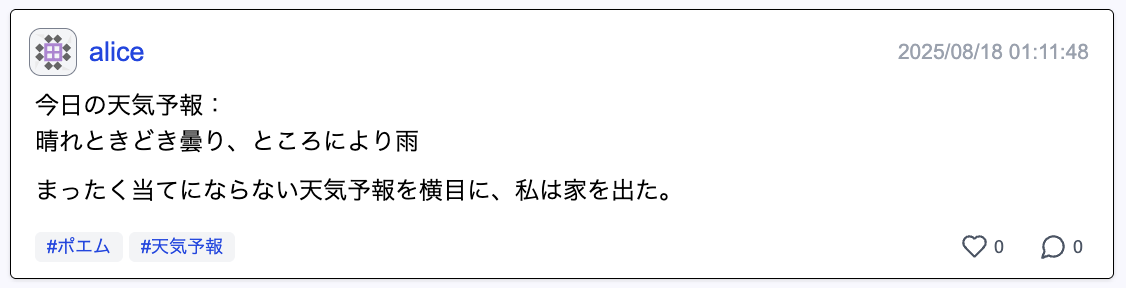
Every post on STGY is represented in Markdown. Unless you use special notation, Markdown can be written much like plain text: ordinary sentences are displayed as ordinary sentences. A single newline is treated as a line break within a paragraph, while consecutive newlines separate paragraphs. A typical example looks like this:
Today's weather forecast:
Sunny with occasional clouds, with rain in some areas

Ignoring this completely unreliable forecast, I left the house.

#weatherforecast, #poem
Paragraphs and headings
Markdown is not a single standardized specification, and many variants exist. STGY's implementation is one such variant. Some Markdown implementations ignore a single newline in ordinary text while others preserve it; in STGY, a single newline is treated as a line break inside the paragraph (HTML <br/>). Paragraphs themselves are separated with HTML <p> elements. As a result, spacing differs between a single newline and consecutive newlines.
You can also write headings. Put # at the beginning of a line for heading level 1, ## for level 2, and ### for level 3. A space after the # characters is required. Heading levels up to 6 are supported.
# Heading level 1
## Heading level 2
### Heading level 3
A document in which related sentences are grouped into paragraphs and related paragraphs are grouped into sections is called a structured document. The following principles are useful when writing a readable structured document:
- Put the title of the article at the beginning as a level-1 heading.
- Group strongly related sentences into paragraphs.
- Group paragraphs into sections and put a level-2 heading at the beginning of each section.
If an article becomes long and contains many sections, it is useful to place a table of contents near the beginning. Write the following line where you want the table of contents to appear:
<!TOC!>
Tags
A line beginning with # at the end of an article is treated as a tag definition. Tags are separated before the body is interpreted as Markdown. Separate multiple tags with commas. Tags are rendered as links; pressing one opens search results for posts carrying the same tag. Assigning the same tag to related posts makes them easier to find when you review your own writing later. Using the same tags as other users also makes it clear that you are discussing the same topic. Uppercase letters in Latin-alphabet tags are converted to lowercase when stored.
In addition to ordinary tags, some tags have special functions. Adding the special tag #[nolikes] disables likes on that post. Adding #[noreplies] disables replies. You can check in the preview before posting whether these tags have been recognized correctly.

You can specify the post locale, meaning language and region, by writing a BCP 47 locale such as #[locale=en] or #[locale=en-US]. If omitted, the locale configured for the user is assigned to the post. The language declaration is used by search engines, screen readers, and similar software when determining the language. It is also used when selecting fonts.
- en : general English (en-GB for British English, en-US for American English)
- ja : Japanese (ja-JP is also accepted)
- zh : Chinese (zh-CN for mainland China, zh-TW for Taiwan)
- ko : Korean (ko-KR for South Korea, ko-KP for North Korea)
- es : Spanish (es-ES for Spain, es-MX for Mexico)
- pt : Portuguese (pt-PT for Portugal, pt-BR for Brazil)
- fr : French (fr-FR is also accepted)
- ru : Russian (ru-RU is also accepted)
- ar : Arabic (ar-EZ for Egyptian Arabic, ar-SA for Saudi Arabic)
- private locale : a sequence of alphanumeric subtags separated by
-afterx, such asx-ja-osaka
Lists
You can write lists as well. A line beginning with - becomes a list item. A space after - is required. Put two spaces before - to increase the nesting level.
- List level 1, item 1
- List level 1, item 2
  - List level 2, item 1
  - List level 2, item 2
    - List level 3, item 1
    - List level 3, item 2
- List level 1, item 3- List level 1, item 1
- List level 1, item 2
- List level 2, item 1
- List level 2, item 2
- List level 3, item 1
- List level 3, item 2
- List level 1, item 3
A line beginning with -+ becomes an ordered-list item. A line beginning with -: becomes an unmarked-list item.
-+ Oda Nobunaga
-+ Toyotomi Hideyoshi
-+ Tokugawa Ieyasu

-: Shutaro Mendo
-: Tatewaki Kuno
-: Shun Mitaka
- Oda Nobunaga
- Toyotomi Hideyoshi
- Tokugawa Ieyasu
- Shutaro Mendo
- Tatewaki Kuno
- Shun Mitaka
A line beginning with something such as -@author represents post metadata. The author part may be replaced by any alphanumeric key. As with an ordinary list item, write the value after a space. Metadata is typically placed immediately after the heading containing the document title and is displayed right-aligned. The author and date keys override the author name and date metadata used when the post is externally published.
-@author Ryunosuke Akutagawa
-@date 1915-11-15
- Ryunosuke Akutagawa
- 1915-11-15
Block quotes
You can also write quotations. A line beginning with > becomes a quotation. A space after > is required. Consecutive quoted lines are combined into a single quoted paragraph.
> What else could I have said,
> before we drifted apart?
What else could I have said,
before we drifted apart?
Tables
Consecutive lines enclosed with | form a table, with columns separated by |. A cell enclosed in = becomes a header cell. Put {colspan=2} or {rowspan=2} at the left edge of a cell to merge columns or rows. Put >> or >< at the left edge to right-align or center the cell.
|=Name=|=Description=|={colspan=2}><Population=|
|Tokyo|The metropolitan government is in Shinjuku. Capital of Japan.|>>14.26 million|{rowspan=2}Urban|
|Kanagawa|The prefectural government is in Yokohama. More populous than Osaka Prefecture.|>>9.21 million|
|Chiba|The prefectural government is in Chiba City. Famous for peanuts.|>>628 people|{rowspan=2}Rural|
|Saitama|The prefectural government is in Saitama City. No particular distinguishing feature.|>>770 people|| Name | Description | Population | |
|---|---|---|---|
| Tokyo | The metropolitan government is in Shinjuku. Capital of Japan. | 14.26 million | Urban |
| Kanagawa | The prefectural government is in Yokohama. More populous than Osaka Prefecture. | 9.21 million | |
| Chiba | The prefectural government is in Chiba City. Famous for peanuts. | 628 people | Rural |
| Saitama | The prefectural government is in Saitama City. No particular distinguishing feature. | 770 people | |
You can use a separator like |---|---| at the second line. It makes all cells in the first line headers. Contents like :---, ---:, and :---: mean left alignment, right alignment, and center alignment respectively for the succeeding rows.
Hyperlinks
To write a hyperlink, enclose the anchor text in [ and ], then immediately write the URL enclosed in ( and ). You can link both to pages inside STGY and to external sites.
I use [ChatGPT](https://en.wikipedia.org/wiki/ChatGPT).
You can search Google for [ChatGPT](https://www.google.com/?q=ChatGPT).
See the [Help article](/posts/0000000000010002) for usage instructions.
Ask the [administrator](/users/0000000000000001) for more details.
Manage images on the [image management page](/images).
I use ChatGPT.
You can search Google for ChatGPT.
See the Help article for usage instructions.
Ask the administrator for more details.
Manage images on the image management page.
Strings beginning with http:// or https:// in the body are automatically turned into hyperlinks to those URLs.
- Details: https://kantei.go.jp/
- Details: https://kantei.go.jp/
Special notation can also be used in the URL part of a hyperlink. If you write wiki-en or wiki-ja, the anchor text is used as the title of an article on the English or Japanese edition of Wikipedia. If you write google, the anchor text is used as a Google search query.
I use [ChatGPT](wiki-en).
I use [ChatGPT](wiki-ja).
You can find it by searching Google for [ChatGPT](google).
I use ChatGPT.
I use ChatGPT.
You can find it by searching Google for ChatGPT.
Other text decoration, ruby, and formulas
Text can be decorated in various ways. These decorations work not only in ordinary prose but also inside headings, lists, and tables.
**bold**, ::italic::, __underline__, ~~strikethrough~~, ``code``, @@mark@@, %%fine print%%, {{kanji|ruby}}bold, italic, underline, strikethrough, code, mark, fine print,
You can also write complex mathematical formulas. Text enclosed in $$ is processed as a LaTeX formula and displayed as an SVG image. Macros such as \frac, \sum, \lim, and \sqrt are supported.
$$E = mc^2$$
$$\int_0^{\sqrt{N}} x^2 \, dx = \lim_{n \to \infty} \sum_{i=1}^{n} f\left( \frac{i \cdot x}{n} \right) \cdot \left( \frac{x}{n} \right)$$
E = mc^2\int_0^{\sqrt{N}} x^2 \, dx = \lim_{n \to \infty} \sum_{i=1}^{n} f\left( \frac{i \cdot x}{n} \right) \cdot \left( \frac{x}{n} \right)
Preformatted text
If you want spaces and line breaks to be preserved exactly, like HTML <pre>, surround the section with a line containing only "```" at the beginning and another at the end. If you need to write "```" inside preformatted text itself, surround the outer section with "````" instead.
```
   This is  a pen.
        This is    also    a pen.
```
This is a pen.
This is also a pen.Preformatted text supports syntax highlighting, which automatically changes text colors according to the syntax of various programming languages and data formats. To enable syntax highlighting, specify a language name on the opening delimiter, such as "```json". Supported names include c, cpp, javascript, typescript, python, ruby, sql, json, yaml, and html.
```cpp
#include <iostream>

int main(int argc, char** argv) {
  std::cout << "Hello, World" << std::endl;
  return 0;
}
```
#include <iostream>
int main(int argc, char** argv) {
std::cout << "Hello, World" << std::endl;
return 0;
}Normally, preformatted text is shown in a fixed-width font inside a frame. If you want to write poetry or other natural-language text rather than a programming language, specify natural as the language. It is then displayed in a proportional font without a frame, like an ordinary paragraph.
```natural
  Fury said to a mouse,
    That he met in the house,
      "Let us both go to law: I will prosecute you."
```
Fury said to a mouse,
That he met in the house,
"Let us both go to law: I will prosecute you."The language-name part of preformatted text can also contain the modifiers :xsmall, :small, :large, :xlarge, :bold, and :italic. lines=N specifies lines to be shown. They can be combined with a language name, as in json:small or natural:large:italic.
```:xsmall
o sweet spontaneous earth
```
```:small
o sweet spontaneous earth
```
```:large
o sweet spontaneous earth
```
```:xlarge
o sweet spontaneous earth
```
```:bold
o sweet spontaneous earth
```
```:italic
o sweet spontaneous earth
```
```:small:lines=3
one
two
three
four
five
```
o sweet spontaneous earth
o sweet spontaneous earth
o sweet spontaneous earth
o sweet spontaneous earth
o sweet spontaneous earth
o sweet spontaneous earth
one
two
three
four
five
Horizontal rules
To draw a horizontal rule, write a line containing four hyphens: ----. Five hyphens, -----, produce a more prominent rule. Three hyphens, ---, produce an invisible rule, which is useful for adding a little vertical spacing or clearing text wrapped around a floated image.
---
----
-----
On the post list, the snippet for each post is generated from at most the first 200 characters and 10 lines. If a rule is encountered while the snippet is being generated, the snippet is forcibly terminated there. If there is content near the beginning of a document that you do not want shown in the post list, placing an invisible rule before it lets you hide it from the snippet. This is useful when you want to withhold a surprise until the reader opens the full post.
Images
To embed an image in an article, use the notation . The caption may be empty. Using the image tool in the post menu lets you upload an image and insert its embedding markup in one operation.
For security reasons, the URLs that can be used for embedded images are restricted. They must either be paths beginning with /images/ for images uploaded through the image-management feature, or existing STGY paths beginning with /data/.


Images are displayed somewhat smaller for readability in the article body, but pressing an image opens an enlarged view.
To display an image large from the beginning, specify an option such as {size=large} or {size=xlarge}.
{size=large}
{size=xlarge}To display an image smaller, specify {size=small} or {size=xsmall}.
{size=small}
{size=xsmall}To float an image and wrap text around it, specify options such as {float=left} or {size=right}. To clear the wrapping, insert the invisible --- rule.
{float=left,size=small}
A stylish mermaid on the shore
My heart pounds at that cute silhouette
A stylish mermaid on the shore
My heart pounds at those dazzling bare feet
---
{float=right,size=small}
I will follow you
I want to follow after you
I will follow you
Though I am just a little timid
---A stylish mermaid on the shore
My heart pounds at that cute silhouette
A stylish mermaid on the shore
My heart pounds at those dazzling bare feet
I will follow you
I want to follow after you
I will follow you
Though I am just a little timid
To display images side by side, use the {grid} option. Consecutive images with {grid} are arranged on one row. Up to five columns are supported. A grid containing only one image has the effect of centering it.
{grid}
{grid}
{grid}
{grid}
{grid}
{grid}
{grid}
{grid}
{grid}
{grid}
{grid}
{grid}
{grid}
{grid}
The post detail page displays every image in an article, but the post list shows only a thumbnail of one representative image. By default, the first image is used. To make another image the representative image, add the {featured} option to it. Alternatively, add {no-featured} to an image that should not be selected. If every image has {no-featured}, no representative image is shown.
Maps
To embed a map in an article, use @[caption](URL), which is the same notation as image embedding except that the leading ! is replaced by @. The caption may be empty.
@[Cycling record](/data/demo-toumi.trj)
The URL can refer to an uploaded FIT file or TrackJSON file. FIT is a data format used by Garmin cycling computers and other activity trackers to represent GPS logs, routes, and measurements from various sensors. TrackJSON extends GeoJSON, a standard format for recording GPS logs and route information, with records for measurements from various sensors. Files ending in .trj contain plain TrackJSON; files ending in .trjgz contain gzip-compressed TrackJSON. When FIT or TrackJSON data is uploaded, a corresponding lightweight TrackJSON representation is generated automatically and used for display.
As with images, display options can be appended in {key=value,...} form.
@[Cycling record](/data/demo-toumi.trj){float=right,size=small,graph=false}A crimson Porsche races through the green
I am traveling alone, turning the wheel wherever I please
At the intersection, the driver beside me is shouting
that I scraped the mirror, so before I know it I am shouting too
To specify the base map, use the base option. For example, write the following to use OpenStreetMap:
@[Cycling record](/data/demo-toumi.trj){base=osm}The following options are available:
- base : specifies the base map. Values are pale (GSI Pale Map), std (GSI Standard Map), photo (GSI photographic map), cycle (OSM cycling map), osm (OSM standard map), and topo (OSM topographic map).
- graph : controls display of measurement graphs. The default is true; if values such as speed exist in the data, graphs are shown. Set false to hide them.
- overlay : controls display of measurement overlays. The default is true; if values such as speed exist in the data, overlays are shown. Set false to hide them.
- controls : controls display of map switching and zoom controls. The default is true. Set false to hide them.
- float : floats the map to the left or right. The value is left or right.
- size : specifies map size. Values are xsmall, small, medium, large, and xlarge.
- grid : arranges consecutively written maps in a grid. No value is required.
- lthr : specifies the LTHR used for heart-rate zoning in watts.
- ftp : specifies the FTP used for power zoning in BPM.
When a map is drawn from a FIT file produced by a cycling computer, graphs of elevation, speed, cadence, and other measurements appear below the map. In addition, the layer-icon menu at the upper left of the map contains "Metadata" and "Analysis" entries. "Metadata" displays various statistical values. The pedaling stats are especially useful because they restrict the statistics to periods in which you are actually pedaling, excluding stopped and coasting intervals. "Analysis" shows histograms of speed, cadence, heart rate, and power. If you additionally specify LTHR (lactate threshold heart rate) or FTP (functional threshold power), histograms for Friel-style heart-rate zones and Coggan-style power zones are added.
You can also write a map center and pins directly in an article without using a track file. In that case, use notation beginning with map:// instead of an ordinary URL.
@[Akasutsumi, Setagaya, Tokyo](map://139.6444794,35.6595519,15)
Immediately after map://, write the longitude, latitude, and zoom level of the map center separated by commas. The order is "longitude, latitude, zoom"; note that latitude does not come first. Longitude and latitude accept both notation with S/N/E/W direction suffixes and notation using negative numbers for west longitude or south latitude. The zoom level may be omitted, in which case it defaults to 13. Zoom level 0 shows the entire Earth, and each increment doubles the magnification.
map://longitude,latitude,zoom
In addition to the center position, you can place any number of pins. Add pins separated by |. Each pin starts with longitude and latitude, followed as needed by a title, description, link URL, and image URL separated with ;. Multiple pins are separated with |. Image URLs may only be URLs beginning with /images/ for images that you uploaded yourself. Multiple link URLs and image URLs can be specified by separating them with spaces.
@[Walking notes](map://139.6444794,35.6595519,15|139.6444772,35.6595498;Bakery;Delicious;/data/logo-square.webp|139.6460,35.6600;Park;Good place for a break)
- BakeryDelicious
- ParkGood place for a break
You can also load track data and add pins on top of it. Append pin notation after the track-data URL, separated with |. This is useful for attaching notes or photographs to a recorded route.
@[Cycling record](/data/demo-toumi.trj|138.29788,36.36151;Mysterious shrine;Buried treasure here)
The map:// notation is a simple format intended for people to write short map notes by hand. It is not suitable for embedding complex route information. To display routes from cycling, hiking, and similar activities, upload a TrackJSON file and refer to it instead. Within map:// notation, commas and vertical bars are delimiters, so they cannot be included in titles or descriptions. If a URL requires these characters, use their URL-encoded form. An invalid map:// URL is not loaded as external data for safety reasons, and the map will not display correctly.
Embedding YouTube videos
As with map embedding, you can use @[caption](URL) notation to embed a YouTube video in an article. The caption may be omitted. As with images and maps, the size can be specified with an option in {size=xxx} form.
@[Cycling record](https://www.youtube.com/watch?v=BOF5PQ9Osc4)
Any of the following URL patterns may be used for YouTube. Official alternative domains such as youtube.com or www.youtube-nocookie.com may be used instead of www.youtube.com.
https://www.youtube.com/watch?v=VIDEO_ID
https://www.youtube.com/shorts/VIDEO_ID
https://www.youtube.com/live/VIDEO_ID
https://www.youtube.com/embed/VIDEO_ID
https://www.youtube.com/v/VIDEO_ID
https://youtu.be/VIDEO_ID
Uploading video data directly to STGY is not currently supported.
Link snippets
When embedding links to other STGY posts or ordinary external websites in an article, link snippets can make them easier to read. A link snippet automatically retrieves the linked document's title and description and displays them in the article. If the destination supplies OGP (Open Graph Protocol) metadata, STGY uses that data. Otherwise, the HTML title, description, and body are used to generate the snippet. Link snippets use %[caption](URL) notation. Because the caption overrides the title, it is normally left empty. For external sites, use an absolute URL beginning with https://. For users or posts inside STGY, use a relative URL beginning with /users/ or /posts/.
%[](https://www.strava.com/activities/19016462432)
%[](/posts/0000000000010003)
Comments
Text enclosed by <[ and ]> is a comment. Here, a comment means text that is present in the Markdown source but is not displayed to readers. Comments can be placed anywhere text can be written. A line containing only a comment is ignored as a whole, so comment lines can also be inserted between list or table rows.
- Tokyo has a population of about 14 million<[verify this]> and is the largest in Japan.
- Yokohama has a larger population than Osaka City.
<[word this carefully]>
- Saitama is rural and has nothing there.
- Tokyo has a population of about 14 million and is the largest in Japan.
- Yokohama has a larger population than Osaka City.
- Northern Kanto is rural and has nothing there.
Markdown is interpreted on the client side, so all source data, including comments, is sent to the client. Do not put confidential information in comments.
Next: STGY architecture